This guide compares five practical methods we tested, including Excel's TRANSLATE function, the Review tab Translator, Google Sheets' GOOGLETRANSLATE function, and full-file translation workflows. For each method, we explain what worked, what didn't, and when you should avoid it.
Before choosing a method, keep three things in mind:
- Machine translation is useful for understanding and first-pass localization, but sensitive legal, medical, financial, or customer-facing content should be reviewed by a human translator.
- Some methods translate cell values only; they don't preserve workbook layout, formulas, charts, or formatting.
- Most translation options require an internet connection because they rely on cloud translation services.
Quick Answer
If you're on Microsoft 365, the TRANSLATE function is usually the fastest way to translate cell values. For mixed-language data, pair it with DETECTLANGUAGE. If you're using Excel 2021 or another supported Office version without the TRANSLATE function, the Review tab Translator can handle quick lookups, but you'll need to copy and paste the result manually. For bulk translation outside Excel, Google Sheets' GOOGLETRANSLATE function is often the easiest workaround. To translate an entire workbook with formatting intact, a dedicated file-translation tool is the cleanest option. Full comparison below.
How We Tested These Excel Translation Methods
We tested the methods in this guide using a sample workbook with 96 rows of short product descriptions, customer review snippets, and table headers. The test text covered English, Spanish, French, German, Japanese, and Chinese.
For each method, we checked four things:
- Whether the method works directly inside Excel
- Whether it can translate an entire column at once
- Whether the translated result updates automatically when the source text changes
- Whether the original workbook formatting is preserved
We also noted important limitations, such as Microsoft 365 requirements, internet dependency, manual copy-paste steps, language-code errors, and daily quota or throttling issues.
Test environment
- Excel version: Excel for Mac 16.110 (26061317), Microsoft 365 subscription
- Operating system: macOS
- Google Sheets tested in: Chrome
- Test date: 2026-06-19
Before You Translate: Accuracy, Privacy, and Formatting
A few realities shape which method is right for you:
Accuracy
Every method here uses machine translation. It's reliable for getting the gist and handling everyday content, but specialized terminology, slang, and context-dependent phrasing are where errors appear. Have a human review anything high-stakes.
Privacy
Cloud translation sends your text to an external service (Microsoft, Google, or a third-party tool). For confidential data, check where the content goes and consider whether you're allowed to send it off-premises.
Formatting
Formula-based methods translate text only. They won't preserve charts, images, merged cells, or layout. If formatting matters, you'll want a dedicated file tool.
Method 1 — Excel TRANSLATE Function
If you're on a supported Microsoft 365 version, the dedicated TRANSLATE function is the simplest option. It translates the contents of a cell using Microsoft Translation Services.
The basic formula:
=TRANSLATE(A2, "en", "es")This takes the English text in A2 and returns Spanish. To auto-detect the source language, leave that argument blank (keep both commas):
=TRANSLATE(A2, , "es")Language codes are standard two-letter codes in quotes: "en", "es", "fr", "de", and so on. Because it's a formula, you can copy it down a whole column. One caveat from our testing: not every two-letter code is accepted — "zh" for Chinese returned a #VALUE! error on Excel for Mac, while leaving the source blank (auto-detect) or using "zh-Hans" worked. When in doubt, leave the source language blank.
When you fill the formula down a large column, some cells may briefly show #BUSY! while Excel waits for the translation service. In our test this cleared on its own within about ten seconds as results came back — it's a loading state, not an error.
Best for: Translating cell values next to the originals, including large columns.
Limitations: Requires a supported Microsoft 365 version and an internet connection. It's a service-backed function, so supported languages and results can change over time, and you may hit text-too-long, invalid-language, or request-throttled errors on long or high-volume content.
→ For the full breakdown, see our guide to the Excel TRANSLATE function.
Method 2 — DETECTLANGUAGE + TRANSLATE for Mixed-Language Sheets
When your data contains several languages in the same column, automatic detection is convenient, but it's not always easy to audit. DETECTLANGUAGE lets you see which language Excel detected before you translate the text.
Use DETECTLANGUAGE to confirm what you're working with:
=DETECTLANGUAGE(A2)Then translate, letting TRANSLATE auto-detect the source and convert to your target language:
=TRANSLATE(A2, , "en")This combination is more dependable for messy, mixed-language datasets than guessing source codes manually, and both functions are official Microsoft 365 functions rather than third-party workarounds.
Best for: Columns containing more than one source language.
What to watch for: Both functions require Microsoft 365 and internet access. In our test on Excel for Mac, DETECTLANGUAGE handled even single-word table headers accurately (correctly tagging Spanish, Japanese, and Chinese headers). The one case to plan around is mixed-language cells: detection returns a single dominant language, so a cell containing several languages is identified as just one.
Method 3 — Review Tab Translator
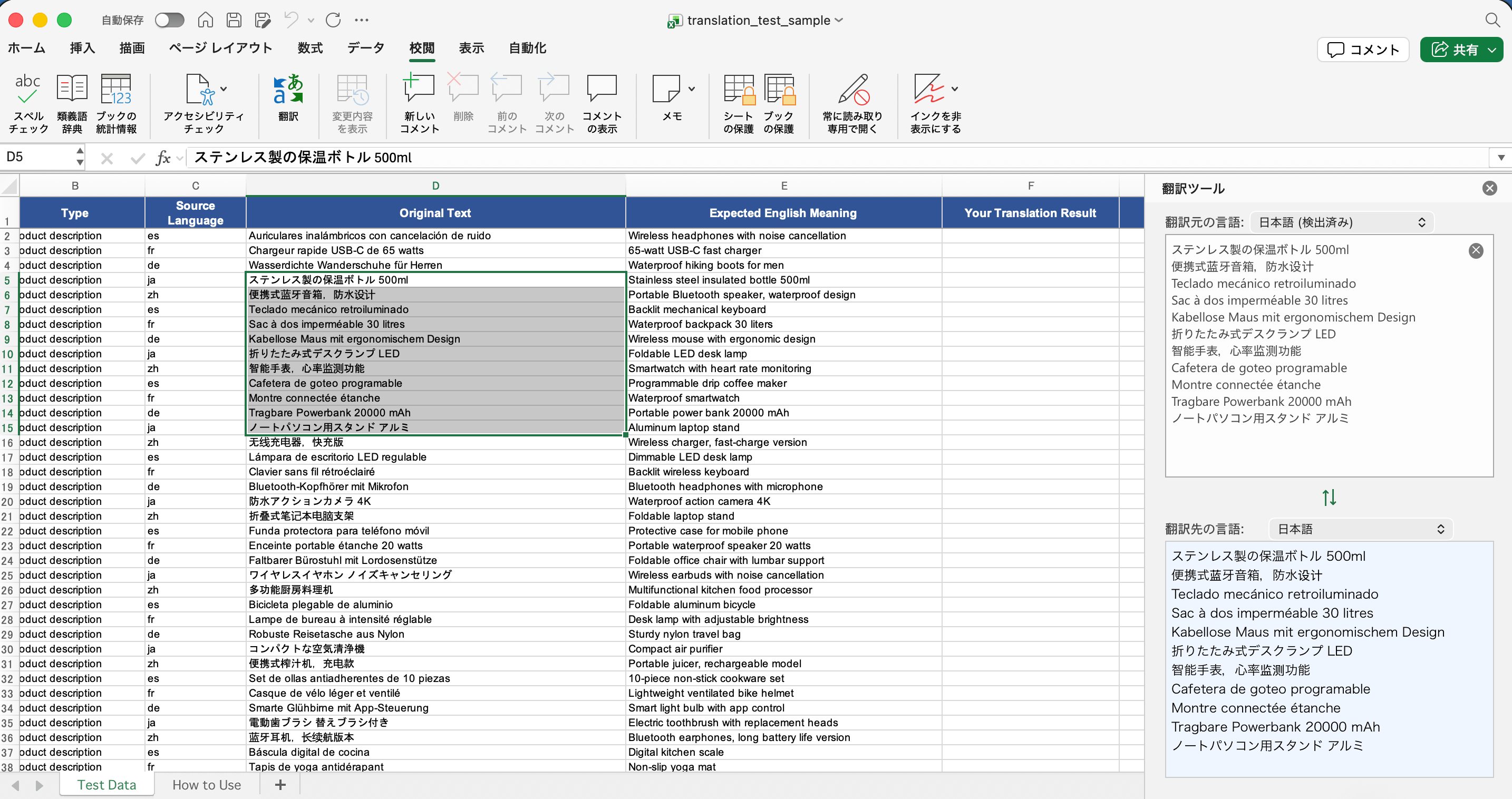
If you'd rather click than write formulas, Excel has a built-in translator under the Review tab. Note that, per Microsoft's documentation, this tool has no "insert" button — you copy the translated result back into your sheet manually.
How to use it:
- Select the cell or range you want to translate.
- Go to the Review tab.
- Click Translate to open the Translator pane.
- Set the From language (or use auto-detect) and the To language.
- Copy the translated text from the pane into your worksheet.
Best for: Quick one-off lookups of selected text.
What to watch for: Availability depends on your Office version, an internet connection, and connected-experiences settings. It doesn't update automatically, and you paste results in by hand rather than translating a whole column in one move. In our test, the Review pane treats the whole selection as a single source language: when we selected four rows in different languages, it detected only Spanish and left the German row untranslated. For mixed-language ranges, group by language first or use the TRANSLATE formula instead.
Method 4 — Google Sheets GOOGLETRANSLATE
Not on Microsoft 365, or you prefer Google's engine? Google Sheets has its own GOOGLETRANSLATE function, and you can route Excel data through it. The syntax:
=GOOGLETRANSLATE(text, [source_language], [target_language])A working example translating English in A1 to Spanish:
=GOOGLETRANSLATE(A1, "en", "es")You can also set the source to "auto" to detect the language automatically. The workflow: paste your Excel column into a Google Sheet, run the formula, drag it down, then copy the translated column back into Excel.
Best for: Non-365 users and free bulk translation.
Limitations: Only works in Google Sheets, not Excel directly, so it involves copy-paste. For some languages, regional variants may matter — but in our testing, Google Sheets was more forgiving than Excel on two counts: "zh" for Chinese worked directly (it errors in Excel's TRANSLATE), and a very long cell that returned #VALUE! in Excel translated successfully in Sheets. A 96-row batch translated without hitting rate limits, showing a brief loading state before results appeared.
Method 5 — Translate an Entire Excel File
The methods above translate cells and columns. Translating a whole workbook into English while keeping the layout intact is a different job. Options include translating sheet by sheet with the Review-tab Translator, routing the file through Google Sheets, or using a dedicated online Excel translator that preserves formatting.
Best for: Translating a complete workbook with formatting preserved.
What to watch for: Formula and Review-tab methods handle text only, not charts, images, or layout. Dedicated tools preserve formatting but are often paid and require uploading your file to a third party — a consideration for sensitive data. (We tested the cell- and column-level methods directly; for full-file formatting preservation, evaluate your chosen tool on a copy first.)
→ See our complete guide on how to translate an Excel file to English.
Which Method Should You Use?
| Method | Best for | Needs M365 | Needs internet | Updates automatically |
|---|---|---|---|---|
| TRANSLATE function | Cell-by-cell translation, large columns | Yes | Yes | Yes |
| DETECTLANGUAGE + TRANSLATE | Mixed-language columns | Yes | Yes | Yes |
| Review tab Translator | Quick one-off lookups | No (version-dependent) | Yes | No |
| Google Sheets GOOGLETRANSLATE | Non-365 users, free bulk translation | No | Yes | Yes (in Sheets) |
| Full-file translator tool | Whole workbooks with formatting | No | Yes | N/A |
As a rule of thumb: use the TRANSLATE function on Microsoft 365, add DETECTLANGUAGE for mixed-language data, reach for the Review tab for quick one-offs, use Google Sheets outside the Microsoft ecosystem, and a dedicated tool for whole-file translation.
Common Errors and Fixes
#NAME? / function not found. You're likely not on a supported Microsoft 365 version, or it needs updating. TRANSLATE and DETECTLANGUAGE don't exist in perpetual-license versions like 2019 or 2021.
Text Too Long / #VALUE! Microsoft says this happens when there are too many characters in a cell. In our test, a roughly 7,000-character cell returned #VALUE! in Excel even with a valid source language. Split the long text into smaller cells and try again. (Notably, the same cell translated fine in Google Sheets.)
#VALUE! on a valid-looking language. In our test, "zh" as the source language failed on every Chinese row, while "zh-Hans" or leaving the source blank worked. If a specific language errors, try auto-detect or a regional code variant.
#BUSY! This is a temporary loading state, not an error — it appears while Excel waits for the translation service and clears on its own once results return.
Connection / service errors. These functions need internet and connected experiences enabled. Offline or on restricted networks, they fail.
Wrong or missing translations. Check your language codes are valid codes in quotes. Also note that for mixed-language cells, both the TRANSLATE function and the Review-tab tool translate only the single detected language and leave the rest untouched.
Frequently Asked Questions
Does Excel have a built-in translate feature?
Yes. Supported Microsoft 365 versions include the TRANSLATE and DETECTLANGUAGE functions, and the Review tab offers a Translator pane in supported Office versions. All rely on an internet connection and Microsoft's translation service.
Can I translate in Excel without Microsoft 365?
The Review tab Translator works in supported non-365 Office versions, and you can route data through Google Sheets' GOOGLETRANSLATE function. The TRANSLATE function itself, however, requires Microsoft 365.
Why does Excel TRANSLATE return an error?
Common causes are being offline, text exceeding the character limit (#VALUE!), an invalid language code, or hitting the service's request throttle on large jobs.
Does Excel TRANSLATE have a daily limit?
It's a service-backed function, and Microsoft caps translation requests. High-volume translation in a single session can trigger throttling, so break large datasets into smaller batches.
Can I use Excel translation for confidential data?
Be cautious. All these methods send text to an external cloud service. For confidential or regulated data, confirm you're permitted to do so, and check the provider's data-handling terms first.
Does translation preserve formulas and formatting?
Formula and Review-tab methods translate text values only — they don't preserve charts, images, or layout. To keep formatting across a whole file, use a dedicated translation tool designed for it.
What is the best method for translating an entire workbook?
For a full file with formatting intact, a dedicated Excel translator tool is usually cleanest. For free, lightly formatted files, translating via Google Sheets works. The Review tab and TRANSLATE function are better suited to selected cells and columns.
Sources and Update Notes
Last tested: 2026-06-19
Test environment
- Excel version: Excel for Mac 16.110 (26061317), Microsoft 365 subscription
- Operating system: macOS
- Google Sheets tested in: Chrome
- Sample data: 96 rows of product descriptions, customer review snippets, and table headers
Primary references
- Microsoft Excel TRANSLATE function
- Microsoft Excel DETECTLANGUAGE function
- Microsoft Office: Translate text into a different language (Review tab)
- Google Sheets GOOGLETRANSLATE function
We update this guide when Excel translation features, language support, or availability requirements change.
Translate a whole workbook with formatting intact
Upload your Excel file and get a translated copy that preserves your layout, formulas, and styling.
Translate an Excel file