Quick Answer
=TRANSLATE(text, [source_language], [target_language]) translates a cell from one language to another using Microsoft Translation Services. It's available in supported Microsoft 365 versions only, requires an internet connection, and you can leave the source language blank to auto-detect. For mixed-language data, pair it with DETECTLANGUAGE.
How We Tested the TRANSLATE Function
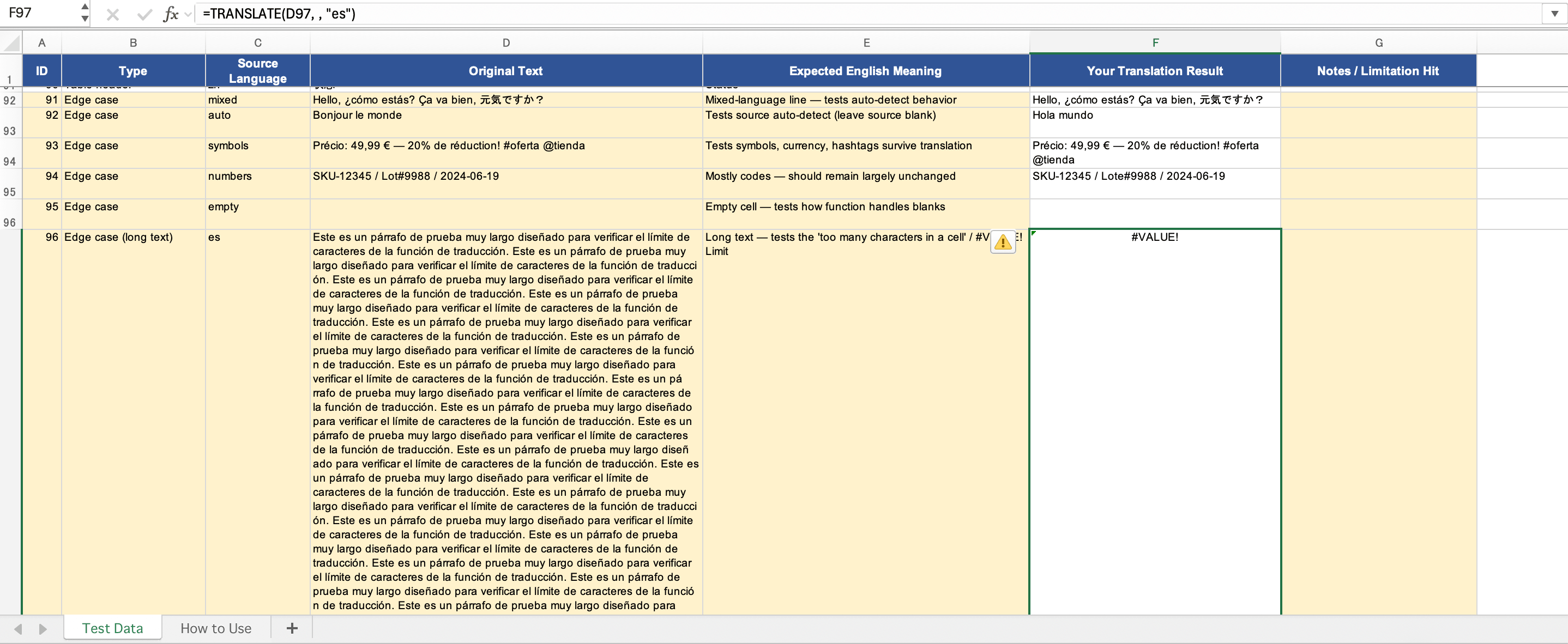
We tested TRANSLATE on a sample workbook of 96 rows containing product descriptions, customer reviews, and short table headers in English, Spanish, French, German, Japanese, and Chinese. We checked single-cell translation, translating a full column, auto-detection, behavior on very long text, and behavior on empty cells.
Test environment
- Excel version: Excel for Mac 16.110 (26061317), Microsoft 365 subscription
- Operating system: macOS
- Test date: 2026-06-19
What Is the TRANSLATE Function in Excel?
TRANSLATE takes text in one language and returns it in another, using Microsoft Translation Services behind the scenes. It was introduced in late 2024 and rolled out through Microsoft 365.
Two requirements before you try it:
- It requires Microsoft 365. On Excel 2021, 2019, or older perpetual-license versions, the function doesn't appear. There's no workaround short of moving to a 365 subscription.
- It requires an internet connection. Every translation call goes out to Microsoft's online service, so it won't work offline.
It's available across Excel for Microsoft 365 on Windows and Mac, Excel for the web, and Excel Mobile. Because it's a service-backed function, the exact languages supported can change over time as Microsoft adds or removes them.
TRANSLATE Function Syntax
The syntax is straightforward:
=TRANSLATE(text, [source_language], [target_language])The three arguments:
- text — The text to translate. This can be a cell reference like A2, or text in quotation marks like
"apple". This is the only required argument. - source_language (optional) — The code for the original language, like
"en". If you leave it out, Excel detects the source automatically. - target_language (optional) — The code for the language you're translating into, like
"es".
Language codes are wrapped in double quotes: "en" (English), "es" (Spanish), "fr" (French), "de" (German), "ja" (Japanese), and so on. Microsoft publishes the full list of supported languages in its documentation, and the supported set can change since it's service-backed. A tested caveat: not every short code works as a source language. In our testing on Excel for Mac, "zh" for Chinese returned #VALUE!, while "zh-Hans" or a blank (auto-detected) source translated correctly.
A practical note from testing: if you omit the target language, the function won't translate the text. So while only the first argument is technically required, you'll almost always specify a target.
How to Use TRANSLATE — Step by Step
- Click the cell where you want the translation.
- Type
=TRANSLATE(. - Reference the cell containing your text, e.g.
A2. - Add the source language code in quotes, like
"en"— or leave it blank to auto-detect. - Add the target language code in quotes, like
"es". - Close the parenthesis and press Enter.
The finished formula:
=TRANSLATE(A2, "en", "es")The translated text appears, assuming you're online.
Practical Examples
Translate a Single Cell
Cell A2 contains "Good morning" and you want it in French:
=TRANSLATE(A2, "en", "fr")This returns Bonjour.
Translate a Whole Column
English phrases in column A, German translations in column B. In B2:
=TRANSLATE(A2, "en", "de")Then double-click or drag the fill handle to apply it down the column. Each row translates its own entry.
#BUSY! (a loading state) and resolved within about ten seconds — no permanent failures from the batch size itself. The failures we did see were down to language codes, not volume: Chinese rows using a "zh" source code returned #VALUE!, which we fixed by leaving the source blank or using "zh-Hans".Auto-Detect the Source Language
For mixed or unknown languages, skip the source argument (keep both commas):
=TRANSLATE(A2, , "en")This translates whatever is in A2 into English. For more control, the companion DETECTLANGUAGE function tells you what language a cell contains:
=DETECTLANGUAGE(A2)Common Errors and How to Fix Them
Issues that come up:
#NAME? / the function doesn't exist. You're likely not on Microsoft 365, or your version needs updating. Perpetual-license versions won't have it.
Text Too Long / #VALUE! Microsoft says this happens when there are too many characters in a cell. In our test, a roughly 7,000-character cell returned #VALUE! even with a valid source language; splitting it into smaller cells fixes it.
#VALUE! on a specific language. In our test, a "zh" source code failed on every Chinese row, while "zh-Hans" or a blank source worked. If one language errors, try auto-detect or a regional code.
#BUSY! while filling a column. This is a temporary loading state, not an error. It appears while Excel waits for the service and clears on its own — in our test, within about ten seconds.
Connection / service errors. TRANSLATE needs internet access. Offline or on a restricted network, it fails.
Odd or wrong translations. Confirm your language codes are valid codes in quotes. Specialized terms, slang, and context-dependent phrases also translate poorly. Mixed-language cells translate only the single detected language and leave the rest as-is.
TRANSLATE vs. Other Translation Methods
TRANSLATE is the cleanest option if you're on Microsoft 365. If not, you have alternatives: the Review-tab translator works across supported Office versions for quick lookups, and Google Sheets offers a near-identical GOOGLETRANSLATE function. For translating an entire workbook with formatting preserved, a dedicated file-translation tool fits better, since TRANSLATE works cell by cell and can't handle charts, images, or layout.
→ For a side-by-side of all options, see our guide to translating in Excel.
Frequently Asked Questions
Is the TRANSLATE function free?
It's included with a Microsoft 365 subscription at no extra charge, but it isn't available outside 365. There's no standalone purchase.
Why doesn't TRANSLATE show up in my Excel?
Most likely you're on a non-365 version, or your 365 install needs updating. The function only exists in Microsoft 365 (desktop, web, and mobile).
How many languages does TRANSLATE support?
It supports a wide range through Microsoft Translation Services. Because it's service-backed, the exact list can change. Check Microsoft's documentation for the current set.
Can TRANSLATE work offline?
No. It calls Microsoft's online service, so internet is required. Offline use produces connection errors.
Why does TRANSLATE return a #VALUE! error?
A common cause is too many characters in one cell (the "Text Too Long" case). Splitting the text across cells usually fixes it. An invalid language code can also cause errors.
Can I use TRANSLATE for confidential data?
The function sends text to Microsoft's cloud translation service. For confidential or regulated data, confirm you're allowed to send it externally and review Microsoft's data-handling terms first.
Sources and Update Notes
Last tested: 2026-06-19
Test environment: Excel for Mac 16.110 (26061317), Microsoft 365 subscription, macOS, sample of 96 multilingual rows.
Primary references
We update this guide when Excel's translation features, language support, or availability requirements change.
Need to translate a whole workbook, not just cells?
Upload your Excel file and get a translated copy that preserves your layout, formulas, and styling — no formula required.
Translate an Excel file