Quick Answer
There's no GOOGLETRANSLATE function in Excel — it only exists in Google Sheets. The most practical approach is to translate in Google Sheets with =GOOGLETRANSLATE(text, [source_language], [target_language]), then copy the results back into Excel. For one-offs, the Google Translate website works; for high-volume automation, the Google Cloud Translation API is an option.
How We Tested These Methods
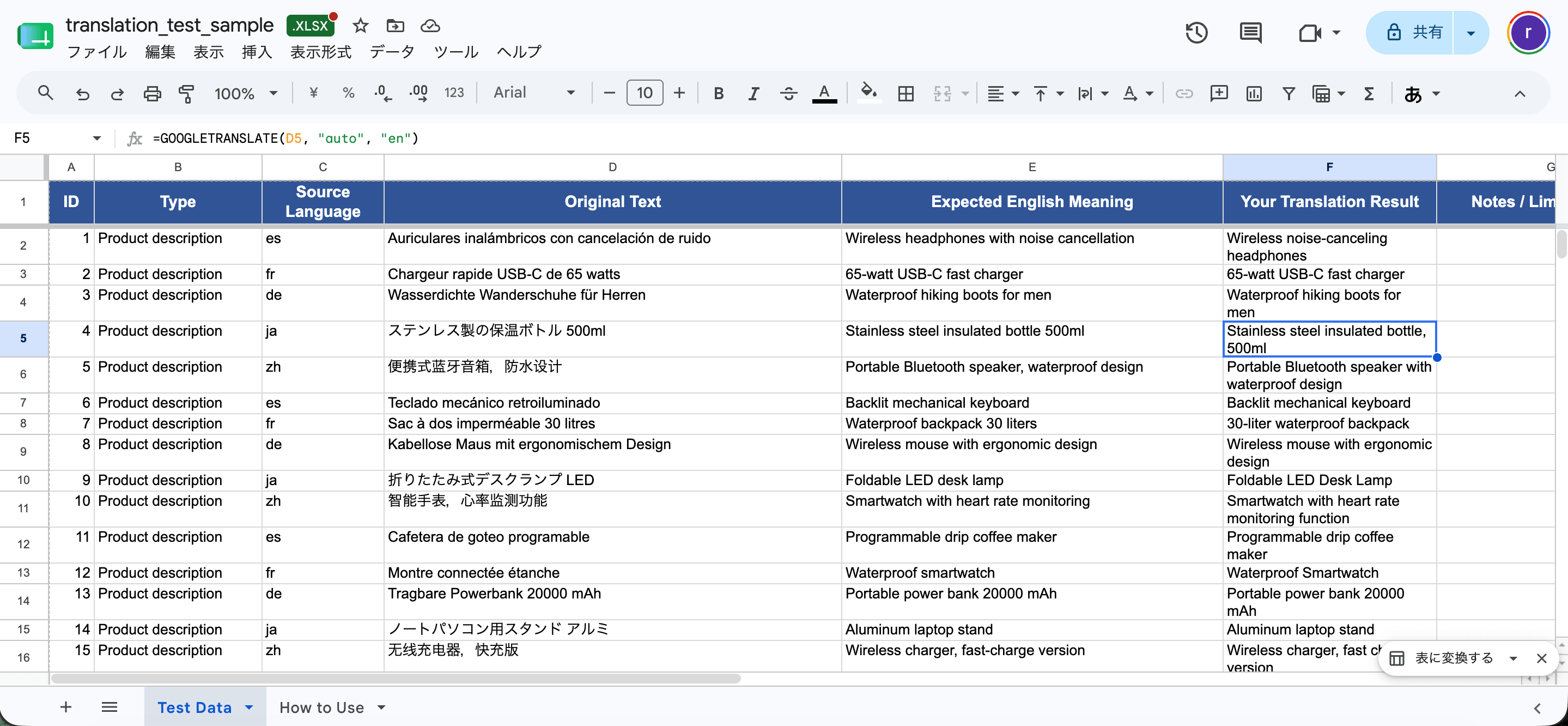
We tested the Google Sheets route on a sample of 96 multilingual rows in English, Spanish, French, German, Japanese, and Chinese, checking single cells, full columns, auto-detection, and behavior on large batches.
Test environment
Google Sheets in Chrome, source file from Excel for Mac 16.110 (26061317), Microsoft 365 subscription, test date 2026-06-19.
Can You Use Google Translate Inside Excel?
Not directly. There's no GOOGLETRANSLATE function in Excel itself — that function exists only in Google Sheets. But because Sheets and Excel work together, you can route data through Google Sheets, translate it there, and bring the results back. For larger or automated needs, you can connect to the Google Cloud Translation API.
Here are the three approaches, in order of effort.
Method 1 — GOOGLETRANSLATE via Google Sheets (Recommended)
This is the most practical method for most people. You translate in Google Sheets, then copy results into Excel.
The GOOGLETRANSLATE syntax is close to Excel's TRANSLATE:
=GOOGLETRANSLATE(text, [source_language], [target_language])A working example translating English in A1 to Spanish:
=GOOGLETRANSLATE(A1, "en", "es")The full workflow:
- Open a new Google Sheet at sheets.google.com.
- Copy your text column from Excel and paste it into column A of the Sheet.
- In B1, enter
=GOOGLETRANSLATE(A1, "en", "es"), adjusting the codes for your needs. - Press Enter, then drag the fill handle down column B.
- Select the translated column, copy it, and paste it back into Excel.
Per Google's documentation, the source and target language arguments are optional, and you can set the source to "auto" to let Google detect the language:
=GOOGLETRANSLATE(A1, "auto", "en")Best for: Non-365 users and free bulk translation.
What to watch for: Works in Sheets, not Excel directly, so it involves copy-paste. In our test, a 96-row batch translated without hitting rate limits — cells showed a brief "loading" state, then resolved. Two results stood out against Excel: "zh" for Chinese worked directly here (it returns #VALUE! in Excel's TRANSLATE), and a ~7,000-character cell that errored in Excel translated successfully in Sheets. If you mainly work with Chinese or long text, the Sheets route handled both more smoothly in our testing.
Method 2 — Copy-Paste with Google Translate Web
For a quick, one-off translation without formulas, the Google Translate website works:
- Copy the cells from Excel.
- Go to translate.google.com.
- Paste your text into the left box and choose source and target languages.
- Copy the translated text from the right box.
- Paste it back into Excel.
Best for: Small, one-off chunks of text.
Limitations: Tedious for large datasets, and it doesn't preserve row structure — text comes back as a block you have to realign manually.
Method 3 — Google Cloud Translation API + Excel (Advanced)
If you translate large volumes regularly or want automation, the Google Cloud Translation API lets you send text to Google's service programmatically and pull results into Excel, typically via a script (such as VBA or Power Query) or a connector.
This route requires:
- A Google Cloud account and Translation API credentials
- Setup to authenticate and format requests
- Awareness of cost — the API is a paid service, with pricing based on usage. Check Google Cloud's current pricing and any free tier before relying on it.
Best for: Recurring, high-volume, automated translation.
Limitations: Requires setup and a billing account; overkill for occasional use. Most users are well served by Method 1.
Google Translate vs. Excel's Built-in TRANSLATE
| Factor | Google Translate (via Sheets) | Excel TRANSLATE function |
|---|---|---|
| Where it works | Google Sheets only | Microsoft 365 only |
| Cost | Free (Sheets) | Included with M365 |
| Syntax | =GOOGLETRANSLATE(...) | =TRANSLATE(...) |
| Auto-detect | Yes ("auto") | Yes (blank source) |
| Best for | Non-365 users, free bulk translation | Users already in Microsoft 365 |
| Extra steps | Copy data to/from Sheets | None — works in place |
If you're already on Microsoft 365, the native TRANSLATE function is less hassle because it works in your workbook. If you're not — or you specifically want Google's translations — the Sheets route is your best bet.
Tips for Bulk Translation
- Watch for rate limits. Translating hundreds or thousands of cells at once can trigger temporary #VALUE! errors as Google throttles requests. Wait a few minutes or split the work across sheets.
- Specify the source language when you can. Auto-detect is convenient but less accurate, especially with short text.
- Review the output. Machine translation is great for general content but unreliable for legal, medical, or marketing copy that needs nuance.
- Check region-specific codes if a language has variants and results look wrong.
Frequently Asked Questions
Is there a GOOGLETRANSLATE function in Excel?
No. GOOGLETRANSLATE exists only in Google Sheets. To use it with Excel, translate in Sheets and copy results back, or connect via the Google Cloud Translation API.
Is using Google Translate with Excel free?
The Google Sheets method is free. The Google Cloud Translation API is a paid service, so it only makes sense for high-volume automated use. Check current pricing before committing.
Why do I get #VALUE! errors translating a large list in Sheets?
Google rate-limits translation requests. Big batches can hit the cap, causing errors. Wait a few minutes or break the data into smaller chunks.
Which is better, Google Translate or Excel's TRANSLATE function?
Neither is clearly better — they use different engines. Use Excel's TRANSLATE if you're on Microsoft 365 and want to stay in your workbook; use Google Sheets if you're outside the Microsoft ecosystem or prefer Google's translations.
Can I use Google Translate with Excel for confidential data?
Both the Sheets method and the API send your text to Google's servers. For confidential or regulated data, confirm you're permitted to do so and review Google's data-handling terms first.
Sources and Update Notes
Last tested: 2026-06-19
Test environment: Google Sheets in Chrome, source from Excel for Mac 16.110 (26061317), Microsoft 365 subscription, sample of 96 multilingual rows.
Primary references
We update this guide when Google or Microsoft change their translation features or availability.
Skip the copy-paste between Sheets and Excel
Upload your Excel file and get a translated copy back — formatting, formulas, and layout preserved, no Google Sheets round-trip.
Translate an Excel file